

Overview
You can add Teamper to your phone or tablet home screen from your mobile browser. The shortcut opens Teamper in your browser, so you can return to it quickly without searching for the website. You do not need to download Teamper from the App Store or Google Play.Adding Teamper to your home screen does not provide offline access or native-app features. You still need an internet connection to use Teamper.
Who can use this
Employees, managers, and admins can add Teamper to their own mobile home screen.Before you start
- Sign in to Teamper in Safari on an iPhone or iPad, or Chrome on an Android device.
- Keep the Teamper page open while you add the shortcut.
Add Teamper on iPhone or iPad
- Open Teamper in Safari.
- Tap the Share button in the browser toolbar.
- Scroll through the menu and tap Add to Home Screen.
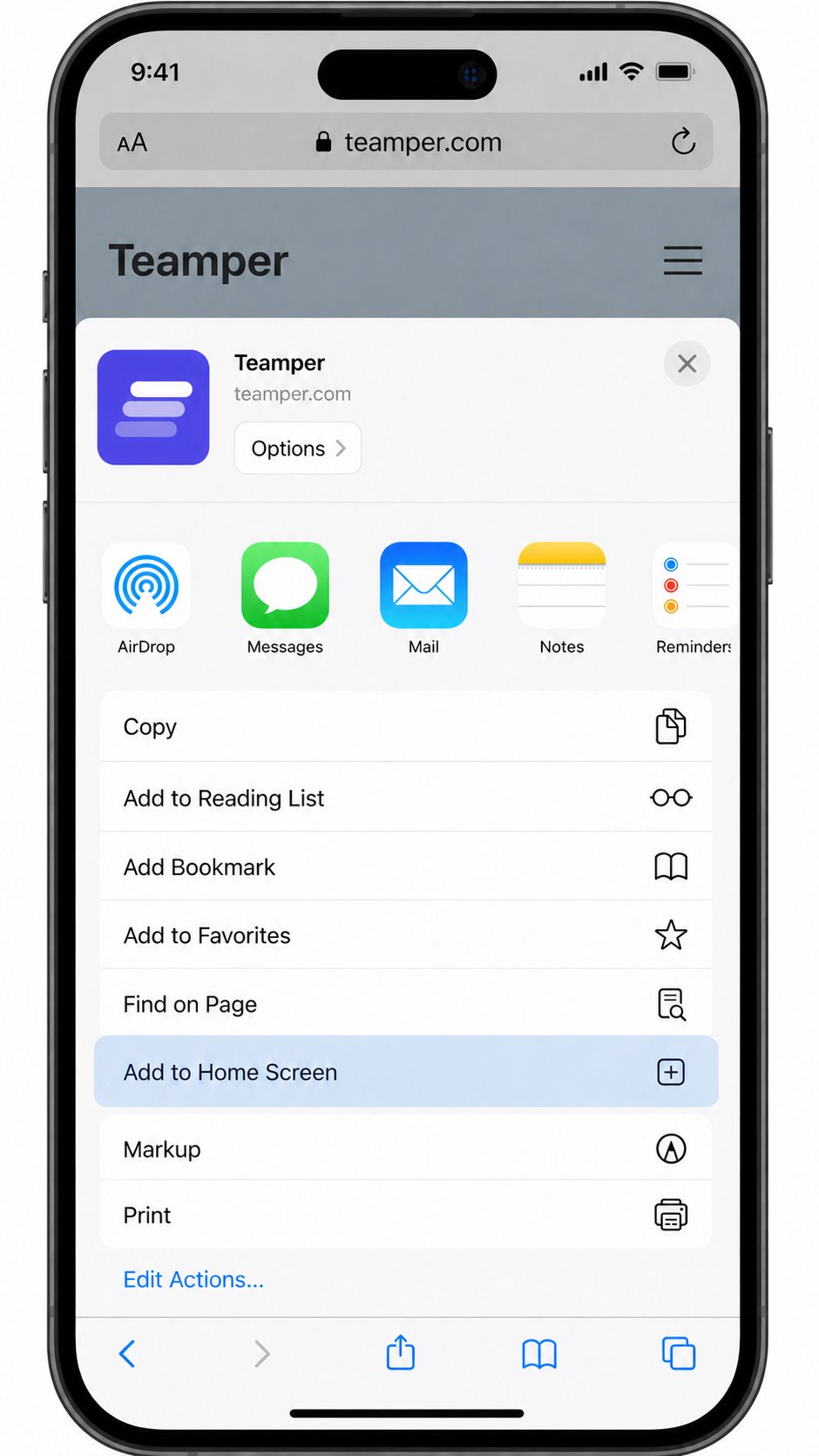
Safari Share menu showing the Add to Home Screen option for Teamper
- Check the shortcut name, then tap Add.
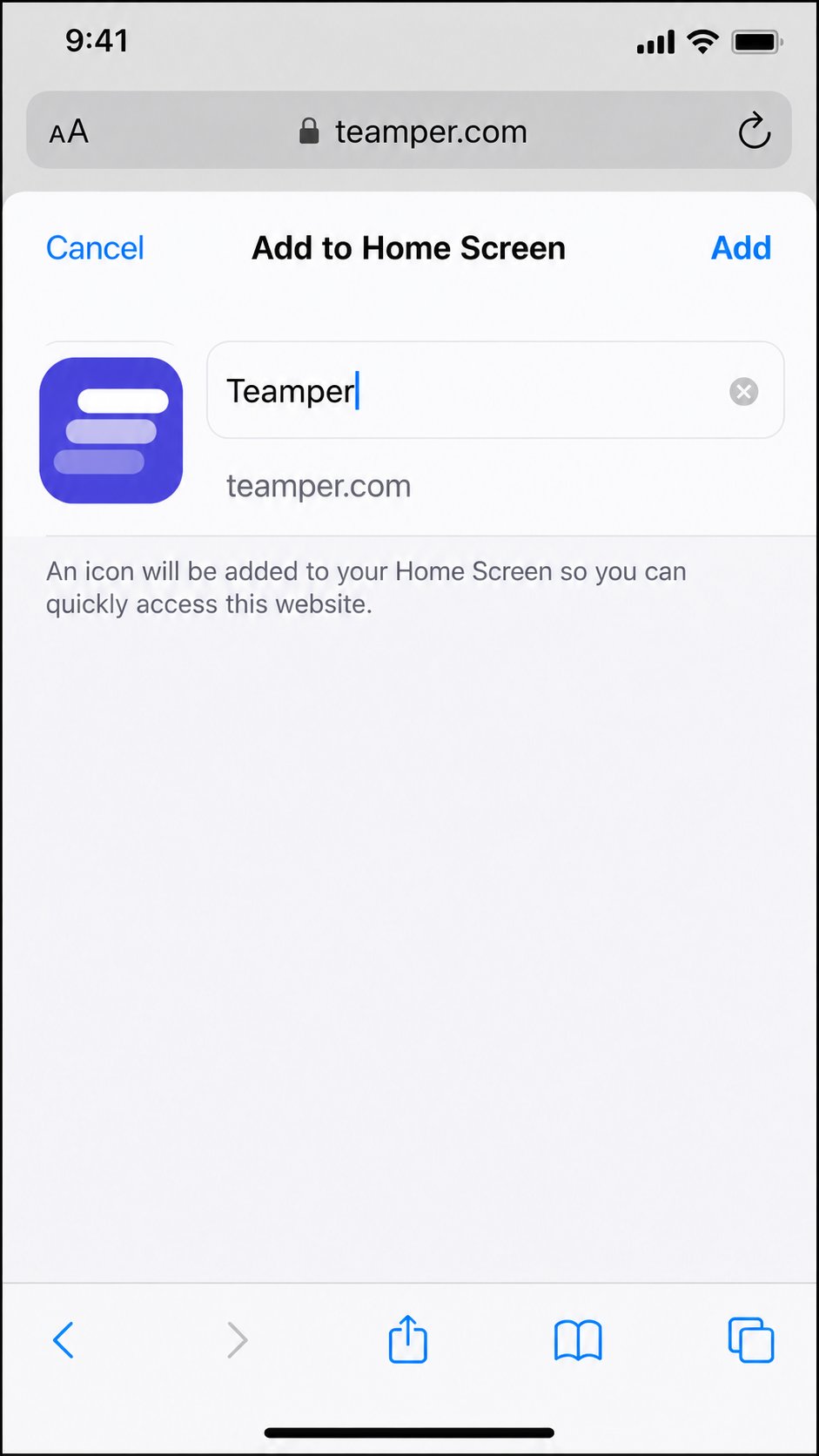
iOS Add to Home Screen confirmation showing the Teamper shortcut before it is added
Add Teamper on Android
- Open Teamper in Chrome.
- Tap the three-dot menu in the top-right corner.
- Tap Add to Home screen.
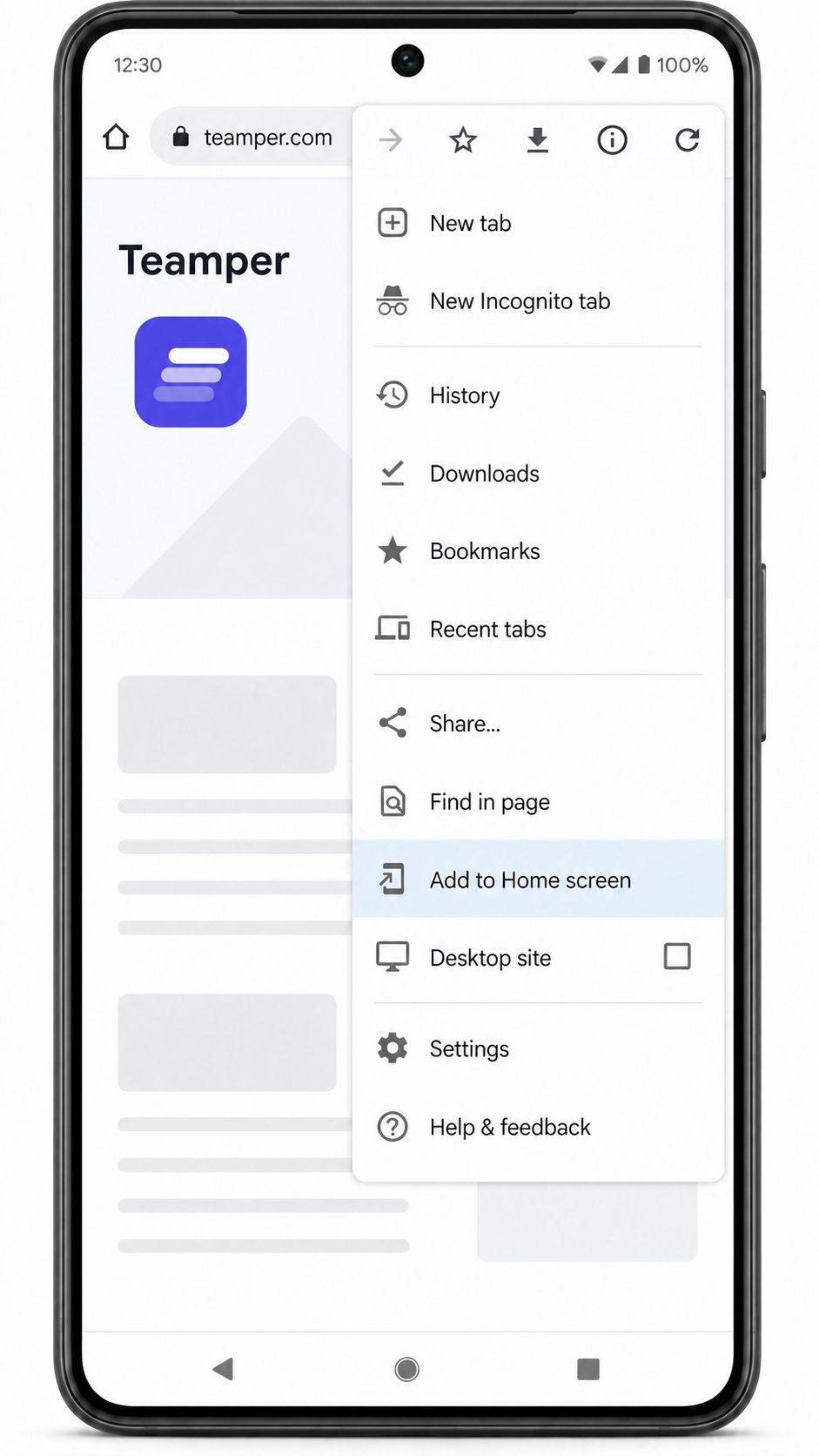
Chrome menu on Android showing the Add to Home screen action for Teamper
- Follow the on-screen prompts to confirm the shortcut name and add it.
Open Teamper from your home screen
After setup, find the Teamper shortcut on your device home screen and tap it to open Teamper. You may need to sign in again if your browser session has ended.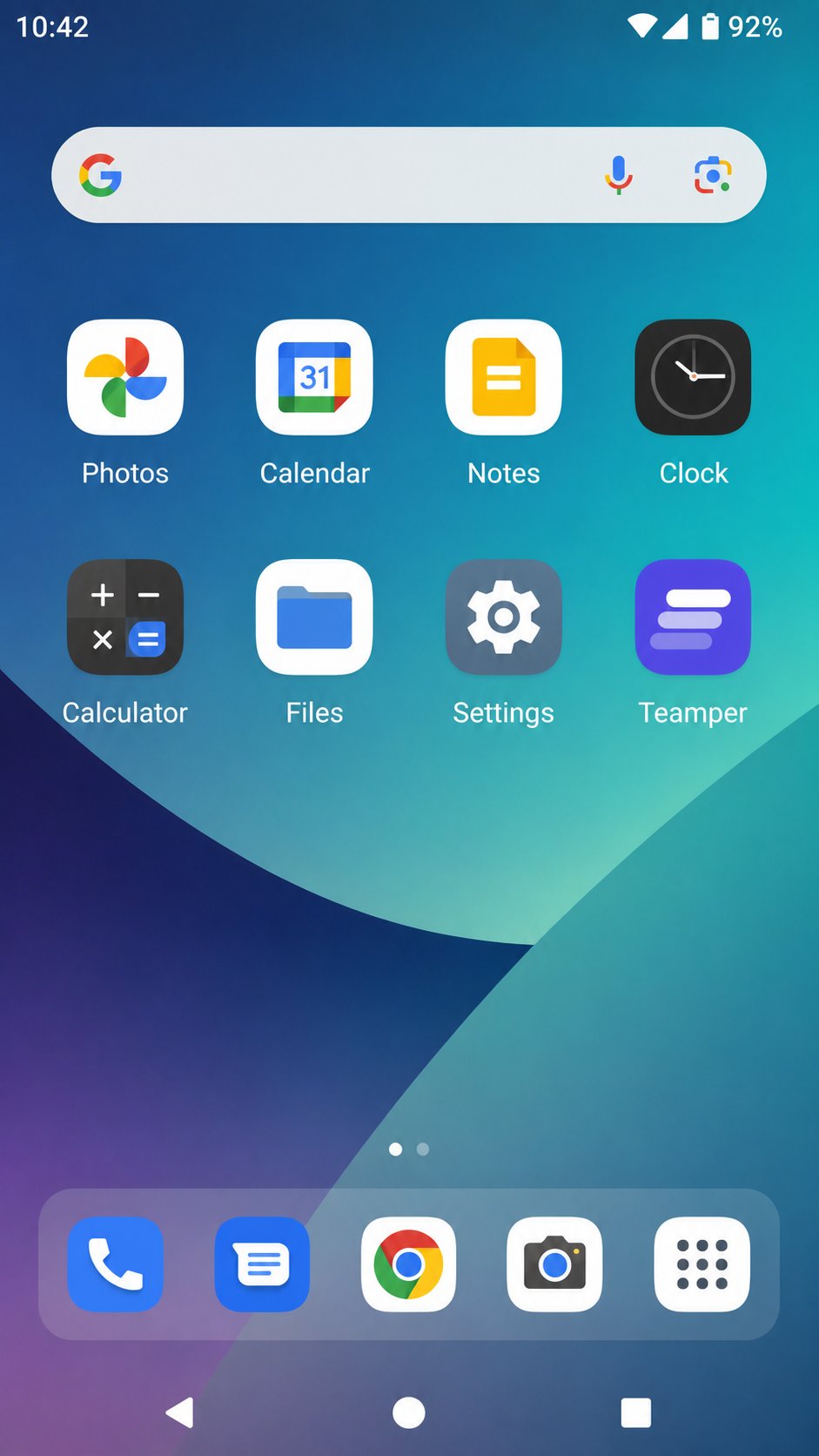
Mobile device home screen showing the Teamper shortcut after setup
Remove the shortcut
Removing the shortcut does not delete your Teamper account or your data.- On iPhone or iPad, touch and hold the Teamper shortcut, then tap Remove App and confirm.
- On Android, touch and hold the Teamper shortcut, then tap Remove or drag it to Remove.