

Overview
Use Assets to keep a company register of laptops, phones, and other equipment in Teamper. Company admins in companies with asset tracking enabled can add assets, see who they are assigned to, and keep a visible history of assignment, transfer, return, and retirement activity.Who can use this
- Company admins in companies where the
asset_trackingmodule is enabled - Employees with the Assets management responsibility when Asset Tracking and Advanced Permissions are enabled
Before you start
- Confirm your company has asset tracking enabled. If it is enabled, you can see Assets in the Company section of the sidebar.
- Decide how you want to identify each asset before you start. Every asset needs a unique
asset_code. - Make sure any employee you want to assign during setup is invited or active in the current company.
Step-by-step guide
Open the Assets register
- Sign in as a company admin.
- Open Assets from the Company section of the sidebar.
- Review the register list, filters, and actions before adding your first item.
Employees, managers, and admins in companies without asset tracking enabled cannot open the Assets area.
Create an asset
- Click Add asset.
- Enter the asset Name.
- Enter the Asset code.
- Optional: add a Category.
- Optional: add a Serial number.
- Optional: set Purchase date when you want to keep a reference date for warranty or replacement planning.
- Optional: enter Purchase cost when you want a lightweight reference amount for the asset.
- Optional: set Warranty expires when you want to track when warranty coverage ends.
- Optional: choose an Assigned employee if you want the asset to start as assigned.
- Optional: add Notes.
- Click Create asset.
name and asset_code are required. category, serial_number, purchase_date, purchase_cost, warranty_expires_on, assignee, and notes are optional.
purchase_cost is informational only. Teamper does not use it for accounting, depreciation, or payroll calculations.
The same fields are available when you edit an existing asset.
Understand asset status
- An asset is
availablewhen it has no assigned employee. - An asset is
assignedwhen it is linked to an employee. - An asset is
retiredwhen you explicitly retire it.
Import assets from CSV
Use Import in the asset register when you want to create multiple assets from a spreadsheet. The import flow lets you download a template, map flexible source columns, review every row, and confirm the import only after the preview is valid. This flow is create-only. It does not update existing assets, and Teamper blocks the batch until every row is valid. See Import assets for the full workflow, supported columns, limits, and validation rules.Search, filter, sort, and page through assets
- Use the search box to find assets by code, name, serial number, or category.
- Filter by Category when you want a narrower equipment list.
- Filter by Assigned to to find assets for one employee or see Unassigned assets.
- Filter by Statuses to include
available,assigned, orretiredassets. - Sort the register by columns such as Asset code, Name, Category, Serial number, Status, Assigned to, or Purchase date.
- Move through pages when your company has more assets than the current page size.
retired to the status filter when you want to review older equipment.
Open asset details and manage lifecycle actions
- Open an asset from the register.
- Review the current details, assignment, and notes.
- Check the Purchased, Cost, Warranty, and Disposed on fields on the detail card when you need operational context for that asset.
- Add a timeline comment above Timeline when you want to record context, handoff notes, or follow-up details that are separate from lifecycle actions.
- Use Assign when the asset is available and you want to give it to an employee.
- Use Transfer when the asset is already assigned and needs a new owner.
- Use Return asset when the asset comes back and should become available again.
- Use Retire asset when the asset should stay in history but leave the default register view.
1000 characters. Type @ in a comment to mention an active employee who already has access to Assets. A mention does not give the person Asset access. A newly mentioned person receives an Inbox update and email, and may receive a web push notification when enabled. Replies and attachments are not supported.
You can edit your own comments. You can delete your own comments, and company admins can also delete comments on the asset timeline. When someone deletes a comment, Teamper keeps a neutral Comment deleted entry in the timeline so the history stays in order.
Lifecycle updates are explicit actions. They are separate from normal asset editing so the register keeps a clearer audit trail.
If you edit a retired asset later, you can correct the current Disposal date without changing the original retirement event recorded in the timeline.
Add and manage Asset files
Use Asset files to keep private supporting records with the equipment they belong to, such as receipts, warranties, contracts, and condition photos. Files are available only to company admins who can access Assets; employees and managers cannot view or download them.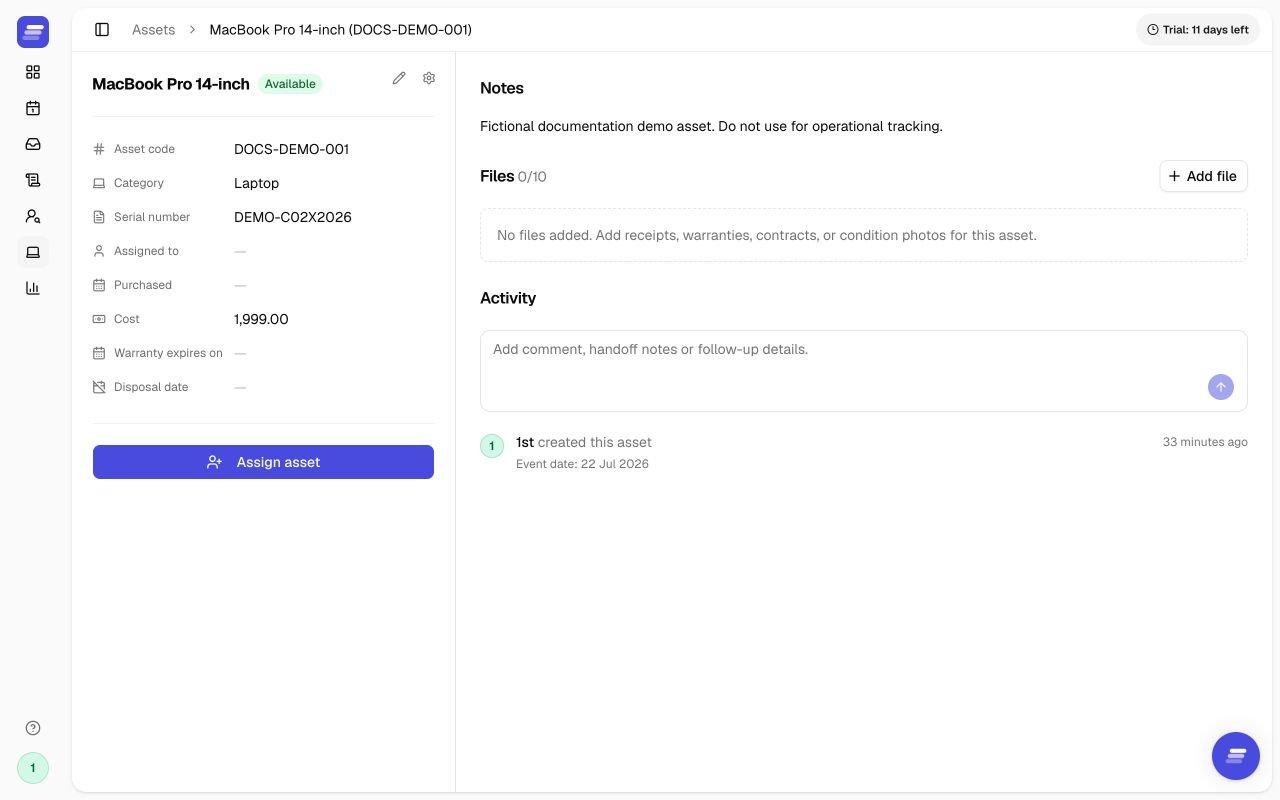
Asset detail page with an empty Files section, showing the Add file action for a new asset
Upload one file
- Open the asset from the Assets register.
- In Files, click Add file.
- Select one file.
- Click Upload file.
10 MiB, and each asset can have up to 10 files. Teamper displays each file’s filename, format, size, upload date, and uploader in the Files section.
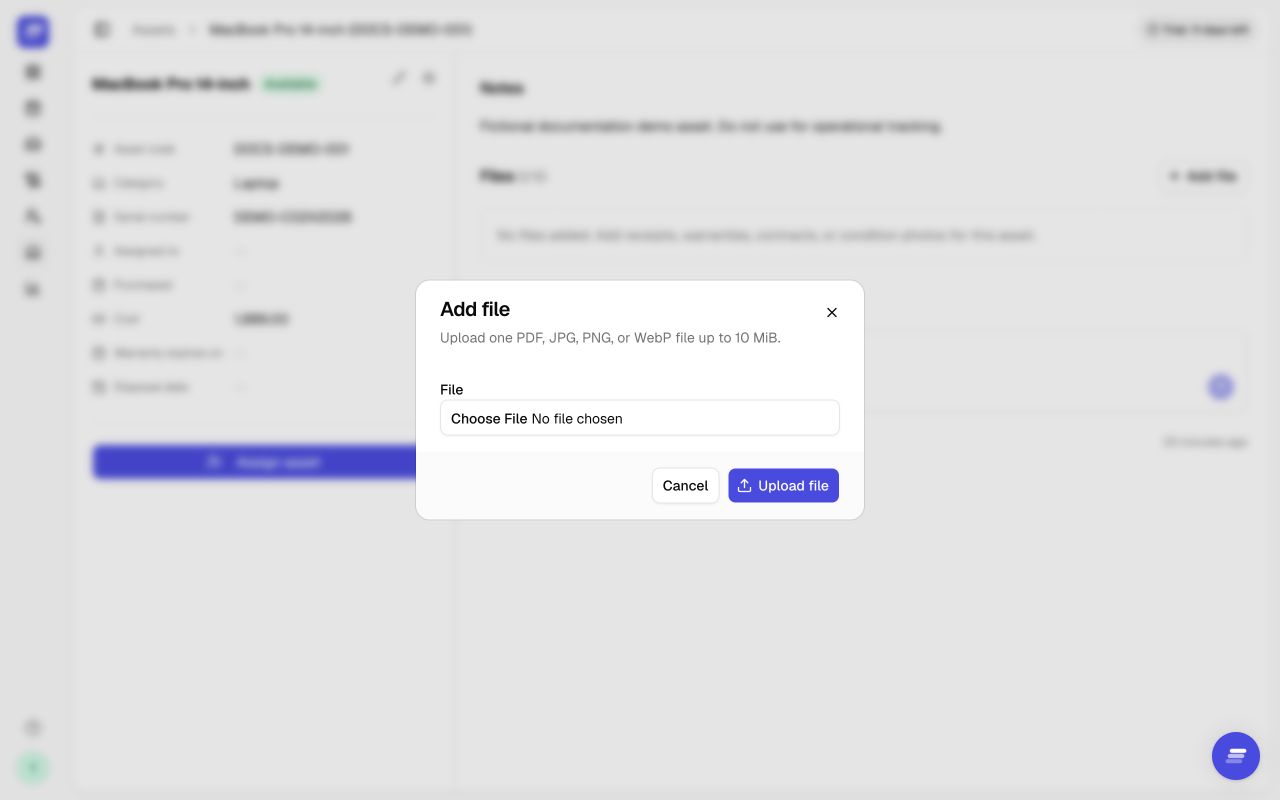
Add file dialog showing the supported PDF, JPG, PNG, and WebP formats and the 10 MiB file-size limit
Upload files one at a time. Teamper does not support batch uploads, file previews, file replacement or versioning, external sharing, employee access, or attaching these files to activity comments.
Download or remove a file
- Open the asset detail page.
- In Files, click Download next to the file you need, or click Remove to delete it.
- When removing a file, review the confirmation and click Remove file to continue.
Track file activity
Teamper adds upload and removal events to the asset Activity timeline. A removal event stays in the history after the file is deleted, so you can see that the action happened even though the file is no longer available. Files stay attached when you assign, transfer, return, retire, or edit an asset. If Asset Tracking is disabled, existing files remain stored but cannot be accessed until the module is enabled again.Retire an asset and record the disposal date
- Open the asset detail page.
- Click Retire asset.
- Optional: set Disposal date if you know when the asset actually left service.
- Click Retire asset.
retired, and keeps the asset in history.
You can only record a Disposal date for retired assets. If the recorded date needs correction later, edit the retired asset and update the current Disposal date there.
What happens next
- New assets appear in the register right away.
- Assets assigned during creation or later actions show the employee name and
assignedstatus. - Returned assets move back to
available. - Retired assets clear the current assignee, stay in history, and can still be found when you include
retiredin the status filter. - If you record a Disposal date, it appears on the asset detail card and in the retirement history entry.
- If you correct the current Disposal date later, the original retirement event keeps the original recorded date.
- Asset detail pages keep one merged timeline for comments and creation, assignment, transfer, return, and retirement activity.
- Asset files stay with the asset through assignment, transfer, return, retirement, and normal edits.
- Uploading or removing an Asset file adds an event to the asset Activity timeline.
Troubleshooting
I cannot see the Assets menu item
Ask a company admin to confirm your company has asset tracking enabled and that you are signed in with admin access. Non-admin users cannot access Assets.I cannot save a new asset
Check that Name and Asset code are filled in. If the asset still does not save, confirm theasset_code is not already being used by another asset in the same company.
I get an error for purchase cost
Check that Purchase cost is0 or more and uses no more than two decimal places.
I get an error for warranty or disposal date
Check that Warranty expires is on or after Purchase date. If you are setting Disposal date, check that the asset is already retired and that the date is on or after Purchase date.I cannot assign or transfer an asset
Check that you selected an invited or active employee in the current company. If the employee is archived or no longer available to select, use another invited or active employee or return the asset until it is ready to be reassigned.I cannot find a retired asset
Addretired to the status filter. Retired assets are hidden from the default register view.
My file type is not supported
Choose a PDF, JPG/JPEG, PNG, or WebP file. Convert or export other file types before uploading them.My file is larger than 10 MiB
Reduce the file size, for example by exporting a smaller image or PDF, then select the file again. Teamper accepts files up to10 MiB each.
I cannot add another Asset file
Each asset can have up to10 files. Remove a file you no longer need, then click Add file and select the new file.
My file upload failed
Select the file again and retry the upload. If the problem continues, confirm that the file type and size are supported. Uploads do not resume automatically after a failure.I cannot see Assets or the Files section
Confirm that Asset Tracking is enabled for the company and that you are signed in as a company admin. Employees and managers do not have access to Asset files.A removed file still appears in Activity
This is expected. Teamper keeps the historical removal event in the asset Activity timeline, even though the file itself has been permanently deleted.The status does not match what I expected
Check whether the asset currently has an assigned employee. Teamper showsassigned when an employee is linked, available when no employee is linked, and retired only after an explicit retirement action.
A removed comment still appears in the timeline
This is expected. Teamper keeps a neutralComment deleted tombstone in the same timeline position so the asset history stays readable.
FAQs
What is asset tracking in Teamper?
It is an admin-only company register for tracking equipment and inventory such as laptops, phones, and other company assets.Why use asset tracking for company equipment?
It helps you keep one visible place for asset details, current holder, and lifecycle history so handoffs and audits are easier to follow.Which fields are required?
name and asset_code are required. The other asset fields are optional.
Is purchase cost used for accounting or depreciation?
No. Purchase cost is informational only and gives admins a simple reference amount on the asset record.Where can I see purchase date, purchase cost, warranty, or disposal date?
Open the asset detail page. Teamper shows these values on the asset detail card as Purchased, Cost, Warranty, and Disposed on.What are timeline comments on assets?
They are plain-text notes you can add above the asset timeline to record context, handoff details, or follow-up information alongside lifecycle activity.Who can add, edit, or remove an asset timeline comment?
Anyone who can open the asset detail page and sees the comment box can add a comment. You can edit your own comments. You can delete your own comments, and company admins can also delete comments.Are asset comments the same as lifecycle history?
No. Comments are separate from asset actions such as assignment, transfer, return, or retirement, but Teamper shows both together in one timeline.Can I use mentions, replies, attachments, or notifications in asset comments?
You can use@mentions for active employees who already have access to Assets. A mention sends the person an Inbox update and email, and may send a web push notification when enabled. Mentions do not give Asset access. Replies and attachments are not supported.
Can I add a disposal date before I retire an asset?
No. Teamper only lets you set Disposal date when the asset is retired.Can I correct the disposal date later?
Yes. Edit the retired asset and update the current Disposal date when you need to correct it.Who can access Asset files?
Only company admins with access to Assets can upload, view, download, or remove files. Employees and managers cannot access Asset files.Which file types can I upload?
You can upload PDF, JPG/JPEG, PNG, and WebP files up to10 MiB each.
How many files can I add to an asset?
You can add up to10 files to each asset.
Are files preserved when an asset is transferred or retired?
Yes. Files remain attached when you assign, transfer, return, edit, or retire an asset.Can I preview Asset files in Teamper?
No. Teamper does not provide file previews. Download the file to open it.Can I restore a removed Asset file?
No. Removing an Asset file permanently deletes it. Upload the file again if you still have a copy.Are Asset files the same as Activity comment attachments?
No. Asset files are private files stored on the asset record. Activity comments are plain text and do not support attachments.What happens if I use a duplicate asset code?
Teamper does not let you save another asset with the sameasset_code in the same company.